


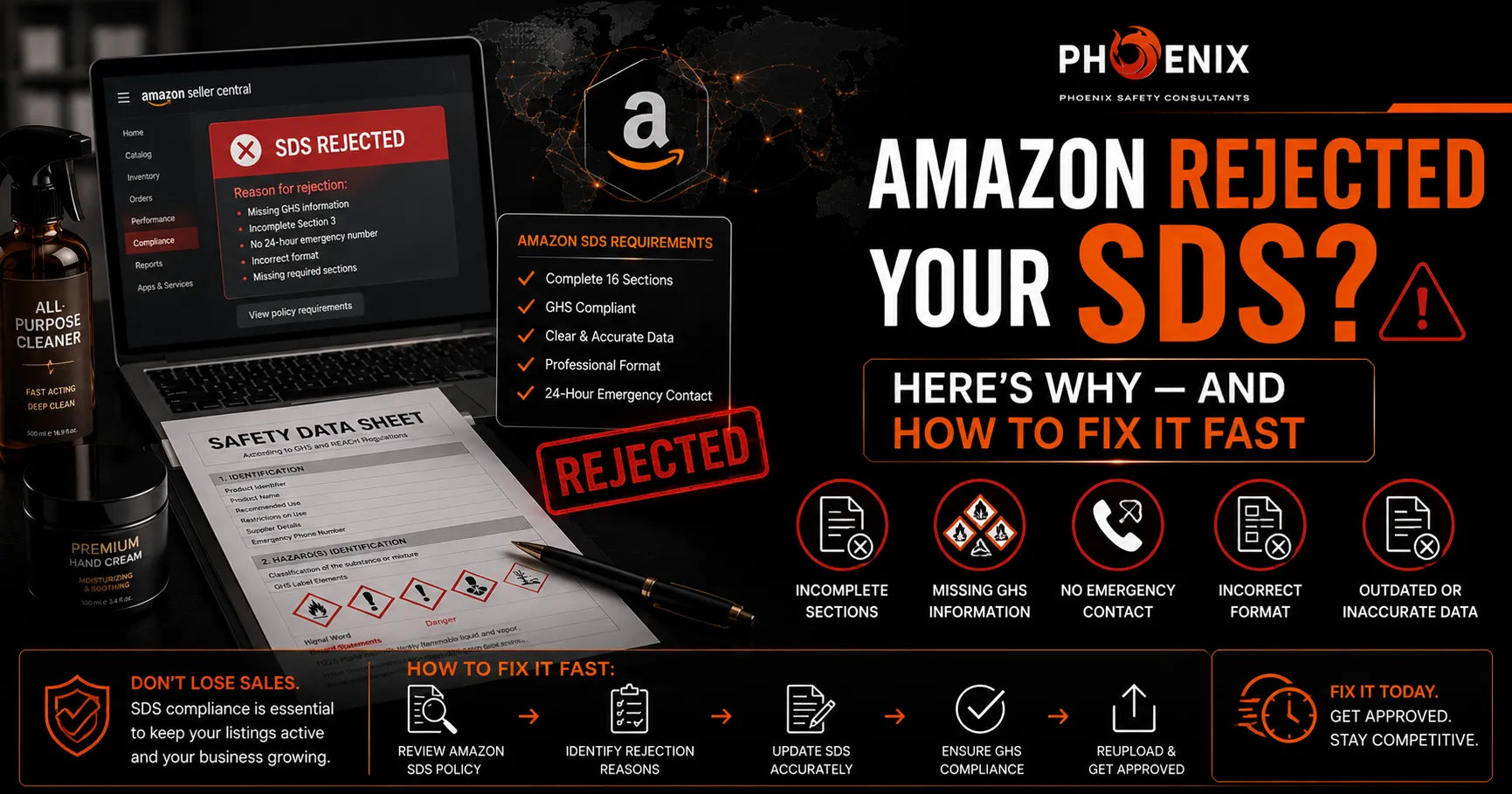
You did the responsible thing. You found a Safety Data Sheet, uploaded it to Amazon, and waited, only to get the message no seller wants: your SDS has been rejected. Now you are staring at a vague notice, a listing that still will not go live, and a deadline that did not pause for the setback.
Here is the good news. Amazon SDS rejections almost always come down to one of a small handful of fixable problems, and the single worst thing you can do is resubmit the same document and hope. Once you understand what actually triggered the rejection, the fix is usually quick and specific.
This guide covers the eight most common reasons Amazon rejects a Safety Data Sheet, how to fix each one, how to decode Amazon’s often-cryptic rejection message, and a checklist to run before you resubmit so you do not burn another review cycle.
First, Don't Panic (and Don't Just Resubmit)
The instinct after a rejection is to upload the same file again, maybe with a different file name, and hope for a different reviewer. Resist it. If the document was rejected once, the same document will be rejected again, and each failed attempt eats into the limited window you have to get the listing approved. Worse, a pattern of repeated rejections can draw extra scrutiny to your account.
Instead, treat the rejection as information. Amazon flagged something specific, and your job is to find out what, fix exactly that, and submit a corrected version once. The rest of this guide shows you how to do that efficiently, starting with the usual suspects.
How Amazon's SDS Review Actually Works
It helps to know what happens behind the scenes when you upload a document. Your SDS does not get rubber-stamped automatically; it goes to Amazon’s Dangerous Goods team, which uses it to classify your product and decide how it can be stored and shipped. A complete, correct document usually clears this review within about two to five business days. A flawed one comes back rejected, and the clock you are working against, typically 14 business days from the original flag, keeps running while you sort it out.
Understanding this matters for two reasons. First, the reviewer is checking specific, consistent things, the same ones listed in this guide, so a rejection is rarely arbitrary. Second, because each review takes days, you cannot afford many rounds. Every rejection-and-resubmit cycle can cost the better part of a week, which is exactly why fixing the true cause on the first correction is so important.
The Top Reasons Amazon Rejects an SDS — and How to Fix Each
1. It's in the Wrong Format (Old MSDS, Not 16-Section GHS)
This is the most common rejection of all. If your document is an old-style MSDS, or any layout that does not follow the standardized 16-section GHS structure, Amazon will not accept it. The older MSDS format predates the global standard and varies wildly from one source to another, which is exactly the inconsistency the modern SDS was created to eliminate. The fix: have the document rebuilt in the current 16-section GHS format. A reformat keeps your product’s real data but reorganizes and completes it into the structure Amazon expects.
2. It Was Written for the Wrong Country
An SDS is not universal. A sheet written for the European Union, the United Kingdom, China, or anywhere else is not valid for a US sale, even if it looks thorough. US listings must follow the OSHA Hazard Communication Standard, which adopts GHS, and the document must be in English. Supplier-provided sheets fail here constantly because they were written for the factory’s home market. The fix: reauthor or adapt the SDS to US OSHA requirements in English. Much of the hazard data may carry over, but the classification details and required wording must meet US rules.
3. The Brand or Product Name Doesn't Match Your Listing
Amazon cross-checks the product name and brand on the SDS against the name and brand on your listing. If your sheet shows a generic chemical name, the factory’s own brand, or a slightly different product title, that mismatch alone can trigger a rejection, even when the document is otherwise perfect. The fix: update the SDS so the product identity in Section 1 matches your Amazon listing exactly, including your brand name. This is one of the easiest fixes and one of the most frequently overlooked.
4. It's Out of Date
Amazon generally expects an SDS dated within the last five years, and it wants a clear revision date in the document itself. A sheet with no date, or one that is years past that window, reads as out of date and gets bounced, because regulations and hazard classifications change over time. The fix: obtain a current, properly dated revision. If your product and its ingredients have not changed, this is often a straightforward update; if the rules have shifted since the last version, the classification may need revisiting.
5. It's Incomplete or Missing Sections
A valid SDS contains all sixteen sections, each with real information. If sections are blank, merged together, marked “not applicable” where data is actually required, or missing the hazard classification entirely, Amazon treats the document as incomplete. The fix: complete every required section with accurate data. Gaps usually mean the underlying information was never gathered, so filling them in may require going back to the product’s composition.
6. It's the Wrong Document Type
Sometimes the rejection is not about quality at all; it is that you submitted the wrong kind of document. If your product is genuinely non-hazardous, Amazon may have wanted an exemption sheet rather than a full SDS, or, less often, the reverse. The fix: confirm whether your product actually needs an SDS or an exemption sheet, then submit the correct one. If you are unsure which applies, settle that question before resubmitting anything.
7. It's Illegible or in the Wrong Language
A document that is blurry, a low-quality scan, partially cut off, or written in a language other than the one required will be rejected on sight, regardless of how good its content is. The fix: submit a clean, legible PDF in the correct language for your marketplace. If all you have is a scanned copy, get a clear digital version; if it is in the wrong language, have it properly translated by someone who preserves the regulatory terminology, not machine-translated.
8. The SDS Contradicts Your Listing
Amazon also looks for consistency between your SDS and your listing. If your SDS classifies the product as flammable while your catalog says it contains no hazardous materials, or the stated contents simply do not line up, that contradiction raises a flag. The fix: make the SDS and the listing tell the same story. Correct whichever one is wrong so your hazard information is consistent everywhere Amazon looks.
Quick Reference: Rejection Reason and How to Fix It
Here is the same information condensed into a scannable table you can check your document against:
|
Rejection reason |
What it usually means |
How to fix it |
|
Wrong format |
An old MSDS layout, not the 16-section GHS standard |
Rebuild it in the current 16-section GHS format |
|
Wrong country |
Written for the EU, UK, China, or elsewhere |
Reauthor it to US OSHA HazCom, in English |
|
Name mismatch |
Brand or product name differs from your listing |
Match the SDS identity to your listing exactly |
|
Out of date |
No revision date, or older than five years |
Get a current, dated revision authored |
|
Incomplete |
Missing sections or required data |
Complete all 16 sections with accurate data |
|
Wrong document |
An SDS was sent when an exemption sheet was needed |
Submit the correct document type for the product |
|
Illegible / language |
Blurry scan or wrong language |
Provide a clean PDF in the correct language |
|
Contradicts listing |
SDS hazards conflict with catalog details |
Align the SDS and the listing so they agree |
Three Rejections and How They Were Fixed
These patterns are easier to recognize in real form. Here are three typical rejections and the fix that cleared each one:
• The perfect-looking sheet that kept failing. A seller’s SDS had all sixteen sections and looked thoroughly professional, but it had been issued for the EU under CLP. The fix was not editing the content; it was reauthoring the document to US OSHA standards in English. Once the regulatory basis matched the marketplace, it passed.
• The right product, the wrong name. Another seller’s sheet was technically accurate but listed the factory’s brand in Section 1, while the Amazon listing showed the seller’s own brand. Updating the product identity to match the listing exactly was the entire fix.
• The sheet that should have been an exemption. A third seller spent two rejected attempts forcing an SDS onto a plain stainless-steel bottle that contained nothing hazardous. The product never needed an SDS at all; a simple exemption sheet cleared it immediately.
Notice that in every case the winning move was diagnosing the real reason, not working harder on the wrong document.
How to Read Amazon's Rejection Message
Amazon’s rejection notices are often frustratingly vague, sometimes little more than “the document provided is not acceptable.” That does not mean the reason is unknowable. Work backward through the most common causes in order: check the format first, then the country, then the name match, then the revision date, then completeness. In most cases, one of those will clearly apply once you actually look.
If the notice does name a specific issue, take it literally and fix exactly that, nothing more and nothing less. And if you genuinely cannot tell why it was rejected, that ambiguity is itself a strong signal the document needs a professional eye. Guessing and resubmitting blindly only wastes another review cycle you may not have time for.
Your Pre-Resubmission Checklist
Before you upload anything again, run the document through these eight checks. If it fails even one, fix that first:
1. It is in the current 16-section GHS format, not an old MSDS layout.
2. It is written for your selling country, in English and to US OSHA standards for the United States.
3. The product name and brand in Section 1 match your Amazon listing exactly.
4. There is a clear revision date, and it is within the last five years.
5. All sixteen sections are complete, including the hazard classification.
6. You are submitting the correct document type, an SDS or an exemption sheet, for the product.
7. The file is a clean, legible PDF in the right language.
8. Nothing in the SDS contradicts the details on your listing.
When to Stop Fixing It Yourself
There is a point where continuing to tweak the document yourself costs more than it saves. If you have been rejected more than once, if you cannot work out why it keeps failing, or if the deadline is closing in, that is the moment to hand it to someone who fixes these for a living.
A professional reformat takes your existing data and rebuilds the SDS into a clean, complete, country-correct, 16-section document matched to your listing, the version Amazon actually accepts. It is faster than another round of guesswork, and it removes the risk of a third rejection drawing extra attention to your account. Reformatting an existing sheet is usually quicker and cheaper than authoring from scratch, because the underlying data already exists; it simply needs to be put right.
Reformatting vs. Reauthoring: What's the Difference?
It is worth knowing the difference between the two fixes, because they are priced and timed differently. Reformatting takes a document that already contains accurate data and rebuilds it into the correct structure, layout, country basis, and product naming, ideal when your information is sound but the presentation fails Amazon’s checks. Reauthoring rebuilds the hazard assessment itself from the product’s composition, needed when the underlying classification is wrong, missing, or built for the wrong regulations. Many rejected sheets only need reformatting, which is why it pays to identify the actual problem before assuming you have to start from scratch.
|
Rejected more than once, or out of time? Send us the SDS Amazon turned down and we’ll reformat it into a clean, 16-section, US-compliant document matched to your listing, often within 24 hours, so your next submission is the one that gets approved. |
How to Avoid Rejection Next Time
A few habits keep you out of the rejection loop for good. Submit your documentation proactively when you first create a listing rather than waiting to be flagged; early submission speeds classification and sometimes prevents a hazmat flag in the first place. Keep your SDS current, reviewing it at least every few years and whenever your formulation changes. Keep your listing and your SDS consistent, since editing your catalog after approval can trigger a fresh review. And store a clean, final copy of every SDS you use, so the next time a marketplace, customer, or auditor asks, you are not starting from zero.
Frequently Asked Questions
Why does Amazon keep rejecting my SDS even though it looks complete?
A document can look complete and still fail on format, country, name match, or date. If the content seems fine, the problem is almost always one of those structural issues rather than the information itself. Check them in that order.
Can I just resubmit the same SDS?
No. If a document was rejected once, the same file will be rejected again, and you will lose another review cycle. Identify the specific reason, correct it, and submit a revised version.
How many times can I resubmit before there's a problem?
There is no magic number, but every failed attempt burns part of your limited window, and a pattern of rejections can attract closer scrutiny to your account. The goal is to fix the root cause and get it right on the next try, not to keep rolling the dice.
Does a rejection reset my deadline?
Do not count on extra time. You generally still need to resolve the issue within the original window, so treat a rejection as a prompt to act quickly rather than a reason to start over leisurely.
My supplier's SDS was rejected. Should I get a new one?
Often, yes. Supplier sheets are commonly rejected for being the wrong country, format, or language. Rather than resubmitting it, have it reformatted or reauthored to US standards and matched to your listing.
How fast can a rejected SDS be fixed?
A reformat of an existing document can often be turned around in a day or two, and rush services can deliver within 24 hours, which is usually enough to beat Amazon’s deadline even after a rejection.
Is reformatting the same as just editing the file?
Not quite. Reformatting rebuilds the document into the correct 16-section GHS structure, country basis, and product naming while preserving the accurate data. Simple text edits rarely fix the structural reasons Amazon rejects a sheet, which is why a proper reformat succeeds where casual tweaking does not.
The Bottom Line
An Amazon SDS rejection feels like a wall, but it is almost always one specific, fixable problem standing between you and approval, usually the format, the country, a name mismatch, the date, or a missing section. The losing move is to resubmit the same file and hope. The winning move is to diagnose the exact reason, fix only that, and submit a corrected document once. Get that right and the rejection becomes a brief detour rather than a blocked launch.
And if you have been rejected more than once or the clock is running out, stop guessing. A clean, properly reformatted SDS is faster and far less stressful than another round of trial and error.
Tired of rejections? Get your SDS reformatted for Amazon approval or send us the rejected document — we’ll tell you exactly why it failed and fix it.